

Mastering Animation in Figma for Better Prototypes
A comprehensive guide to using Figma animation effectively. Covering microinteractions, plugins, and common pitfalls.
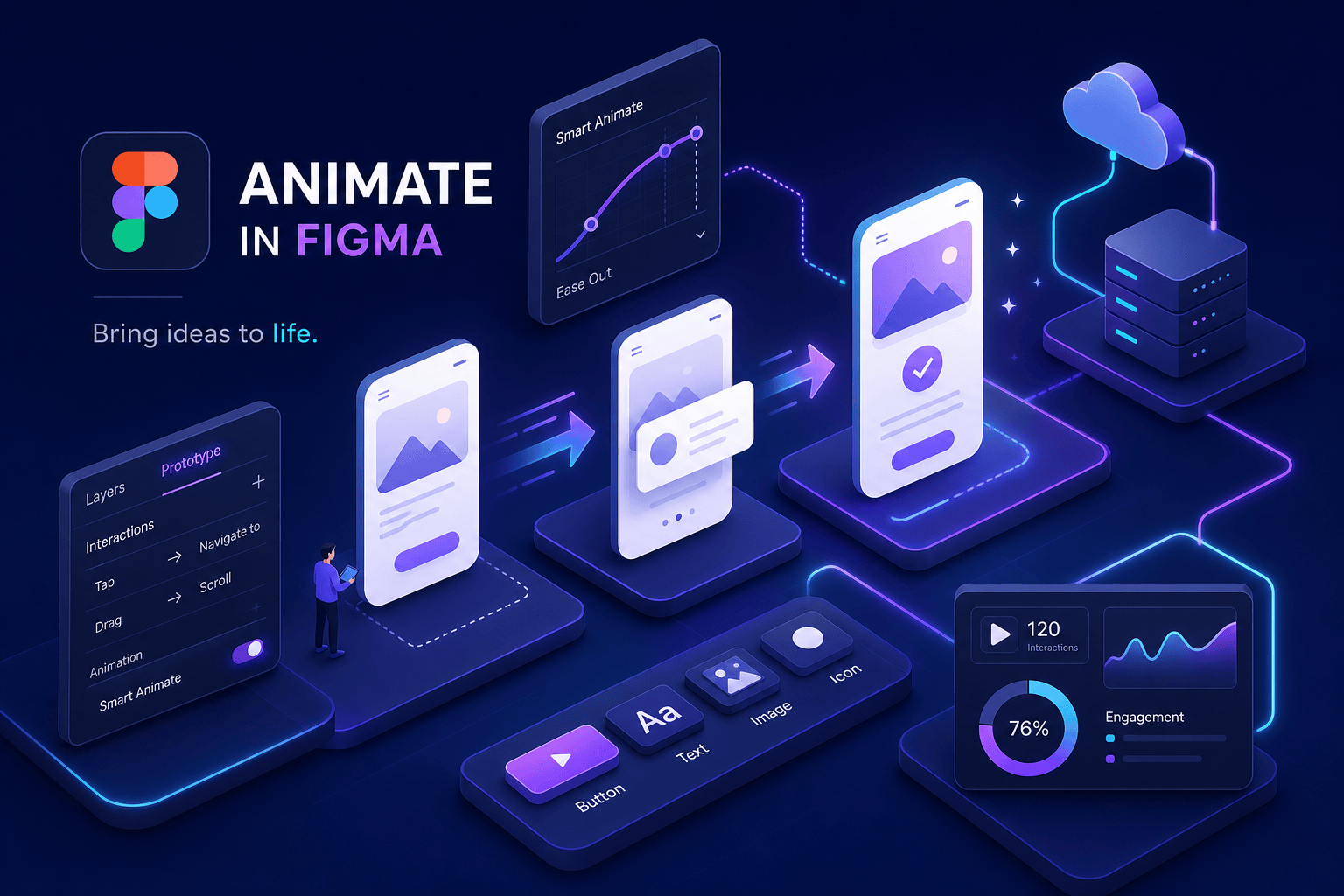
Animation in Figma is something most designers treat as a finishing touch, added at the end, once everything else is done. That instinct is understandable, but it produces prototypes that feel flat. Motion is not decoration. It communicates hierarchy and guides attention through an interface, confirming actions as users take them. When it is missing or wrong, users feel the absence even if they cannot name it.
Figma has a capable animation system built directly into its prototype engine, but most designers only use a fraction of what it can do. Libraries like FigAnimations exist precisely because building polished, production-ready animations from scratch requires real setup time. For designers who want to go hands-on first, understanding Figma's native tools is the right starting point.
This guide covers how Figma's animation system is structured, how to use Smart Animate correctly, how to build a button microinteraction that actually feels right, which plugins extend what Figma can do natively, what breaks animations, and how to hand them off to developers without losing fidelity.
Animation in Figma: How the System Is Structured
Before touching any settings, get the mental model right. Figma's prototyping motion is built on three elements working together: frames define visual states, connections link those states, and triggers decide when a transition fires. Miss any one of these and the animation either will not play or will behave in a way you did not intend.
Frames, States, and the Logic of Before and After
Figma animations are state-based, not timeline-based. Each frame represents a visual state, and animation is what happens between two states. You create a "before" frame and an "after" frame, then tell Figma how to move from one to the other. This is a fundamentally different mental model from timeline tools like After Effects, where you define every moment in sequence. In Figma, you define the endpoints and let the engine fill the middle.
Triggers, Actions, and Connections in the Prototype Panel
The main triggers available are On Click, While Hovering, After Delay, and On Drag. Each one shapes the feel of the interaction differently, and choosing the wrong trigger is a common beginner mistake. A button that navigates on "After Delay" instead of "On Click" creates a confusing experience, users wonder what they did wrong, because the trigger is not a technical detail, it is a design decision.
Smart Animate in Figma: What It Does Automatically and Where It Stops
Smart Animate is Figma's most powerful native animation feature and also the most misunderstood. It works by matching layers across frames by name and hierarchy, then automatically interpolating the differences. If a button shifts position or scales between two frames, Smart Animate handles the in-between without any manual keyframing.
For the definitive behavior and layer-matching rules, see Figma's Smart Animate documentation. For a practical walkthrough and usage tips, this LogRocket guide to Smart Animate is helpful.
The Properties It Animates Out of the Box
Smart Animate supports automatic interpolation for position (X/Y), size, opacity, rotation, corner radius, fill color, stroke color, and certain effects like blur and drop shadow. To make this concrete: a card that expands from 60px to 200px height between two frames will animate smoothly because Smart Animate interpolates the size change. A button that shifts from one background color to another will cross-fade rather than snap. These transitions happen automatically when the same layer exists in both frames with different property values.
Where Smart Animate Hits a Wall
Smart Animate does not morph shapes, animate text content changes, or reliably handle layers that exist in one frame but not the other. Layers with mismatched names are treated as newly created, so they appear or disappear instantly rather than animating. Layer naming is the foundation everything else is built on, and it is not optional. Keep names consistent across every frame and Smart Animate works reliably. Let names drift and debugging becomes the job.
Building a Button Microinteraction Step by Step
A button hover-and-press interaction is a clean starting point for understanding how Figma's animation system works at a practical level, every UI component checklist starts here for a reason. The goal is a button that feels responsive: color shifts smoothly on hover and gives tactile feedback on press.
Setting Up the Button States
Create three frames: Default, Hover, and Pressed. Each frame holds the same layer structure, with every layer carrying matching names across all three states. "Background" in the Default frame must be "Background" in the Hover and Pressed frames. Converting these frames into a component set with variants is the recommended approach. It keeps states organized, makes the component reusable, and reinforces naming consistency automatically.
Timing and Easing Settings That Actually Feel Right
The numbers matter here. Vague guidance like "keep it short" is not actionable. Here are specific settings that produce a polished result:
  Interaction
  Trigger
  Animation
  Easing
  Duration


  Hover in
  While Hovering
  Smart Animate
  Ease In and Out
  150, 200 ms


  Hover out
  While Hovering (reverse)
  Smart Animate
  Ease In and Out
  150, 200 ms


  Press
  On Click
  Smart Animate
  Ease Out
  100, 150 ms


  Release
  On Click (reverse)
  Smart Animate
  Ease In
  100, 150 ms
The reasoning behind these choices is worth understanding. Hover transitions should feel smooth and unhurried, so Ease In and Out matches the natural rhythm of a cursor moving over an element. Press feedback needs to feel immediate and snappy, which is why Ease Out at 100ms reads as physical and responsive. The easing curve communicates the weight of an interaction as much as the visual change does. Get the curve wrong and the button feels off, even if the designer cannot immediately say why.
When Native Figma Animation Isn't Enough: Plugins and Ready-Made Libraries
Figma's built-in animation tools cover most common use cases well. But state-based tools have real limits for sequences that need frame-by-frame control. For teams that need to ship polished interactions at speed, the native toolset alone will not always get there.
Figmotion and Magic Animator for Precise or AI-Assisted Control
Figmotion adds keyframe-based animation editing directly inside Figma. It is useful for designers who need frame-by-frame control over motion paths without leaving the design environment. Magic Animator takes a different approach: it generates animation options from static frames and exports to MP4, GIF, or Lottie. Both tools extend what Figma's animation system can do natively, and both require setup time and a learning curve before they pay off.
Why FigAnimations Is Built for Designers Who Need Speed Without Compromise
Building animations from scratch means configuring triggers, timing, easing, layer naming, and state logic for every single interaction. That is a significant time cost across a full project. FigAnimations removes that blank-canvas problem entirely. Instead of starting from zero, you get a curated library of pre-built, production-quality animations designed specifically for Figma's prototype system. Drop them into a prototype, for example, a hero animation or a sidebar animation, they are already configured for Figma's trigger and transition system. The library is hand-picked rather than a generic grab-bag, which means consistency across every interaction in a project. For product designers on tight timelines or freelancers delivering polished client work, that consistency is a genuine advantage.
Pitfalls That Break Animations in Figma
Even experienced designers run into animation failures in Figma. Most of them trace back to a small set of recurring problems. Knowing what to look for saves debugging time and prevents the frustrating loop of adjusting settings without understanding the root cause.
Auto Layout Conflicts with Smart Animate
Auto Layout is one of Figma's most useful features, but it creates friction in animation workflows. When animating elements inside Auto Layout containers, such as expanding cards, accordions, or collapsible sections, the container can resize in unexpected ways mid-transition, causing content to jump or reflow. The recommended workaround is to animate opacity and position inside a fixed-size container rather than animating the Auto Layout container's dimensions directly. If Auto Layout must stay in place, set a fixed height on the main container to prevent layout recalculation during the transition.
Layer Name Mismatches and Structure Drift
As a prototype grows, layer names drift. A button layer named "BG" in one frame becomes "Background" in another, and Smart Animate treats them as two different objects, producing an instant snap instead of a smooth transition. Build a naming convention early, apply it consistently to every frame, and audit names before testing. A shared naming guide for the team eliminates this problem entirely, it is a small discipline with a large payoff.
Getting Your Animations Into Production: Handoff That Actually Works
A prototype that impresses in Figma is only valuable if developers can implement it accurately. Figma does not export animation specs automatically. Timing values and easing curves do not transfer through the standard handoff file, spring parameters included. Bridging that gap requires deliberate documentation and the right export tools. For technical handoff details, consult the Figma plugins Transition API documentation which explains how transitions and timing can be read or generated programmatically.
Exporting to Lottie, GIF, and Video
For developer handoff, Lottie JSON is the most practical format. It is lightweight, scalable, and natively supported on web, iOS, and Android. Plugins including LottieFiles, Lottielab, and Protonix convert Figma prototypes into Lottie files with varying degrees of fidelity. For marketing assets or stakeholder presentations, GIF and MP4 exports work well through the same tools. One important step before export: clean the layer structure. Unused layers and deeply nested groups can break Lottie compatibility, so trim the file before running the plugin.
What Developers Need Beyond the Prototype File
Provide developers with the exact numbers: duration in milliseconds, easing type, delay values, and any stagger logic. A short annotation on the prototype or a shared doc with these specs removes guesswork and prevents the "it doesn't look like the design" conversation after implementation. The goal is to make the developer's job unambiguous, not to hand off a file and hope for the best.
The Fundamentals Carry Everything Else
Figma's animation system is state-based. Smart Animate does the heavy lifting when layers are named correctly and structures are consistent. Timing and easing choices define how an interaction feels, not just how it looks. Building these skills makes every design decision more intentional and produces prototypes that communicate clearly to both stakeholders and developers.
For designers who want to move faster without cutting quality, FigAnimations removes the setup entirely. Rather than configuring every microinteraction from zero, the library provides a curated, ready-to-use starting point built specifically for Figma's prototype system, time reclaimed for decisions that actually require a designer's judgment.
Mastering animation in Figma comes down to two habits more than anything else: consistent layer naming and deliberate trigger choices. Get those right, and you resolve the majority of animation failures before they happen. Everything else builds from there.