

The Complete Guide to Figma Animation
A practical guide to Figma animation. From basics to advanced workflows, plugins, and production exports.
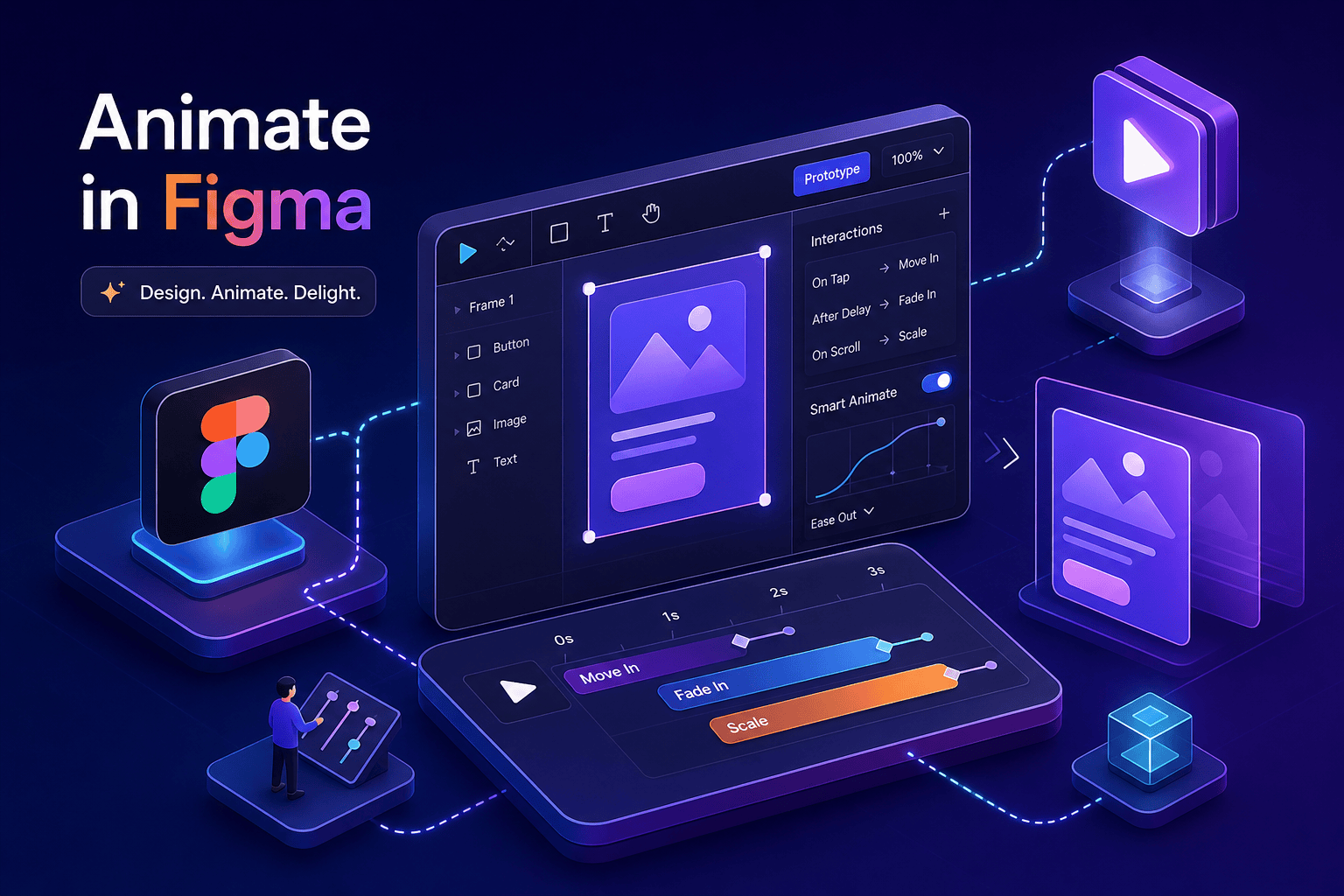
A static mockup can look polished and still feel completely unconvincing in a prototype. The design is right. The spacing is tight. But nothing moves, nothing responds, and the person reviewing it has to imagine the rest. That gap between a great-looking screen and a believable interactive prototype usually comes down to figma animation techniques that many designers know exist but haven't fully put into practice.
Figma's animation system is more capable than most designers use it for. Between Smart Animate, interactive components, trigger options, and a solid plugin ecosystem, you can cover the majority of product UI motion without leaving your design file, though extremely complex motion work, like particle systems or 3D camera rigs, may still require specialized tools. Some designers build every figma animation from scratch; others use curated resources like FigAnimations to skip the repetitive setup and reach polished, consistent results faster. Both approaches work. This guide covers the full stack: native tools first, then timing and easing, then advanced patterns, plugins, and export paths.
What Figma's native animation system actually does
Smart Animate and how layer matching works
Smart Animate is Figma's core animation engine. It works by scanning two connected frames for layers with matching names, then animating the differences between them: position, size, rotation, opacity, fill, and more. The matching logic checks both the layer name and its position in the hierarchy. If names don't match exactly, Smart Animate treats the layers as unrelated objects and simply skips the transition, with no indication that anything went wrong. That silent failure trips up a lot of designers, and Figma's own documentation recommends verifying layer matches using the prototype preview before assuming the transition will fire. For deeper tips, see Smart Animate best practices.
The practical fix is simple: name your layers before duplicating frames, not after. Consistent naming and consistent hierarchy are the only two things standing between you and smooth transitions. Once the structure is right, Smart Animate can handle loading sequences, toggle switches, expanding panels, parallax effects, and drag-based gestures without any plugin, for example, a well-constructed sidebar animation demonstrates how matching layers produce a smooth, believable result.
Transition types and when to use each
Figma ships with several preset transitions. Instant works well as a snap-back or hidden default state rather than a visible animated transition. Dissolve fades between frames and is the right choice for overlays, tooltips, and modals appearing on top of existing content. Move In/Out and Slide In/Out handle directional navigation. Push simulates one screen replacing another and feels natural for paginated flows. Smart Animate sits above all of these: use it specifically when you want to animate property changes within components rather than whole-frame navigation.
Triggers and the After Delay trick
Figma supports multiple trigger types, including On Click, On Hover, While Hovering, On Drag, and After Delay. Many designers default to On Click and stop there. After Delay is the underused one, set it to fire after a short wait and you can chain animations together, simulate loading state sequences, or build an auto-playing onboarding tour with no user input required. It's a simple mechanic that makes prototypes feel significantly more alive.
Getting figma animation timing and easing right
Duration guidelines that match human perception
For most UI interactions, the effective range falls between 100ms and 300ms. Micro-interactions like button presses and hover state changes sit at the faster end, 100, 200ms, communicating instant feedback, which is exactly what those interactions should feel like. Modals entering the screen, panels expanding, and drawer components sliding in work best between 250, 350ms. For full-screen context shifts, stretching to around 500ms is acceptable without losing the sense of responsiveness. Beyond that, the interface starts to feel like it's making the user wait, and users notice.
The target frame rate is 60 FPS. Animations that drop below that threshold feel choppy regardless of how well-tuned the timing is, so keep layer complexity manageable on large animated frames.
Easing curves and what each one communicates
Linear easing almost always feels mechanical in a UI context. Real objects accelerate and decelerate; linear motion doesn't, and users register that mismatch even if they can't name it. Ease-out (fast start, slow end) is the correct choice for elements entering the screen: they arrive with energy and settle into place. Ease-in (slow start, fast end) works for exits: elements start gently, then leave quickly so attention returns to what remains. Ease-in-out is for elements that travel across the screen and stay visible, like a carousel slide or a reordering animation.
Figma's curve editor lets you set a custom cubic-bezier for anything requiring a spring-like feel. Material Design 3's standard easing follows this pattern with a snappy take-off and a soft landing, which is a reasonable baseline for most product UI work. Build a small set of named curves and use them consistently across the project.
Why micro-interactions in Figma often feel "off"
Two mistakes account for most of the problem. The first is animations that run too slow: a button hover state taking 400ms reads as laggy rather than smooth. The second is reversed easing: applying ease-in to an entering element makes it hesitate before appearing, which the user reads as a performance issue rather than a design choice. Motion is feedback. When the feedback feels uncertain, the interface feels uncertain.
Building interactive components that hold up under testing
Multi-state component architecture
Interactive components let you define hover, pressed, focused, and disabled states inside a single component. The structure is a base component with variants, each variant connected to others through interaction triggers. When you drop that component into a frame, it carries all of its behavior with it. This is dramatically more scalable than maintaining separate frames for each state, especially when a design system has dozens of components that all need consistent interactive behavior.
Animating practical patterns: sliders, toggles, and expanding content
Smart Animate handles toggle switches, accordion components, and drag-based sliders well. The technique is consistent in all three cases: keep layer names identical across variants and only change the properties you want to animate. The toggle thumb moves; the track fill changes. That's two properties, two matching layers, one clean transition. One nuance worth knowing: while Smart Animate can handle many auto-layout property changes, complex auto-layout reflows and clip-mask changes can produce unexpected results. If an element's clipping mask shifts significantly between states, plan that transition manually rather than relying on Smart Animate to interpolate it cleanly.
Scroll and drag interactions for realistic prototype feel
Figma's On Drag trigger enables gesture-based interactions directly in the prototype. Swipe-to-dismiss, pull-to-refresh, and carousel swipes are all achievable without any plugin. Scroll behavior on frames lets you simulate long-form content faithfully. These features together make it possible to put a prototype in front of a user and have them interact with it the way they'd interact with a real product, without switching to a different tool.
When plugins extend what native Figma can't do
Figmotion: keyframe-based figma animation
Figmotion is a free plugin that adds a dedicated timeline editor to Figma. Where Smart Animate interpolates between two states automatically, Figmotion gives you keyframe control over position, rotation, scale, opacity, color, path motion, and border radius across a full timeline. It runs in a separate window, which keeps your Figma canvas uncluttered and works well on multi-monitor setups. Export options cover Lottie JSON, CSS, GIF, MP4, and WEBM.
The interface is dense. Newcomers usually spend time orienting themselves to the timeline model before anything clicks. That said, the learning curve is worth it for animations that require more precision than frame-to-frame transitions can offer: logo animations, icon micro-motion, and anything with overlapping property changes on multiple layers. Paid plans start at $10/month for expanded features, but the free tier handles a significant amount of real work. You can find the official Figmotion plugin on Figma Community to try it directly.
The ready-made shortcut: using pre-built animated components
Building animations from scratch on every project is a legitimate skill, but it's also a repeating tax on your time. The same toggle, the same loading spinner, the same card hover state: rebuilt project after project with minor variations. FigAnimations solves that problem directly. It's a curated library of polished, production-ready animated components built specifically for Figma, designed to drop into a prototype without any setup. For designers under deadline pressure or anyone maintaining motion consistency across a design system, it eliminates the rebuild-from-scratch cycle and keeps the focus on the product decisions that actually need thought.
Choosing between plugin-built and native animations
The decision rule is straightforward. Use native Smart Animate for state-based UI interactions: component hover states, modal entrances, toggle switches, navigation transitions. Reach for Figmotion when you need timeline precision, path-based motion, or an export format that requires frame-by-frame keyframe control. The two tools aren't competing; they handle different parts of the motion design workload. For a quick overview of popular options, see this roundup of Figma animation plugins.
Exporting figma animations for production
Lottie JSON and the developer handoff path
Lottie JSON is the production standard for embedding animations in web and mobile apps. Two main Figma-to-Lottie paths exist. The LottieFiles plugin exports JSON, dotLottie, SVG, MP4, and GIF formats and works across Figma's product suite. The critical limitation: it does not support Smart Animate natively. If Lottie export is the production target, build the animation with that constraint in mind from the beginning, not after the fact. Protonix is the alternative for teams that need to export Smart Animate prototypes to Lottie, using the Aninix engine to handle the translation.
GIF, MP4, and video for demos and presentations
For non-production contexts, the format choice maps directly to the use case. GIF works for quick Slack shares and inline documentation; it's universally supported and requires no player. MP4 is the right format for client presentations and stakeholder demos: better quality, smaller file size, and reliable playback in any meeting environment. Figmotion exports both. UX Mate and the Export to GIF/MP4 plugin are additional options worth knowing. LottieFiles also covers MP4 and GIF if you're already in that workflow.
CSS export and its current limitations
Figma has no native CSS animation export. Designers who need CSS output use Figmotion's CSS export feature or translate transitions manually. For teams working in design-to-code workflows, say, handing off to a React developer expecting keyframe CSS, this gap surfaces quickly and can slow things down. Flag it early so handoff expectations are set correctly from the start.
Figma vs. After Effects: knowing when to switch
What Figma handles well enough
For the majority of product UI animation work, Figma is sufficient. Button states, modal entrances, page transitions, onboarding flows, component micro-interactions: all of this lives comfortably within Figma's toolset. The workflow advantage is real and worth protecting. Figma animations live in the same file as the design, context switching is eliminated, and the prototype stays in sync with the source of truth without a separate export step.
When After Effects earns its place
After Effects belongs in the workflow for advanced motion graphics, particle systems, 3D camera work, broadcast-quality visual effects, and anything requiring precise keyframe control at a level Figma's system can't match. The AEUX plugin bridges the two tools for teams that need both. For most product designers building interactive prototypes, switching to After Effects is overhead that rarely pays off compared to getting better at Figma's native capabilities or building on a solid library of pre-made animated components. Know the ceiling; most projects never reach it.
Putting it into practice
Figma animation is a learnable craft with a clear skill ladder. Start with Smart Animate and clean layer naming. Get timing and easing right before anything else: the difference between a 200ms ease-out and a 400ms linear transition is the difference between an interface that feels responsive and one that feels slow. Build interactive components that behave consistently across the project. Use Figmotion when native tools hit their ceiling. Plan your export path before you animate, not after.
For designers who want professional-quality results without rebuilding the same interactions project after project, FigAnimations eliminates the rebuild-from-scratch cycle and keeps the work focused on decisions that matter. The techniques in this guide cover everything you need to bring a prototype to life. The further you climb the skill ladder, the more you'll know which steps are worth taking yourself.