

How to Export Figma Animations
A complete guide to exporting Figma animations as GIF, MP4, Lottie, and dotLottie. Compare plugins, learn workflows, and avoid handoff pitfalls
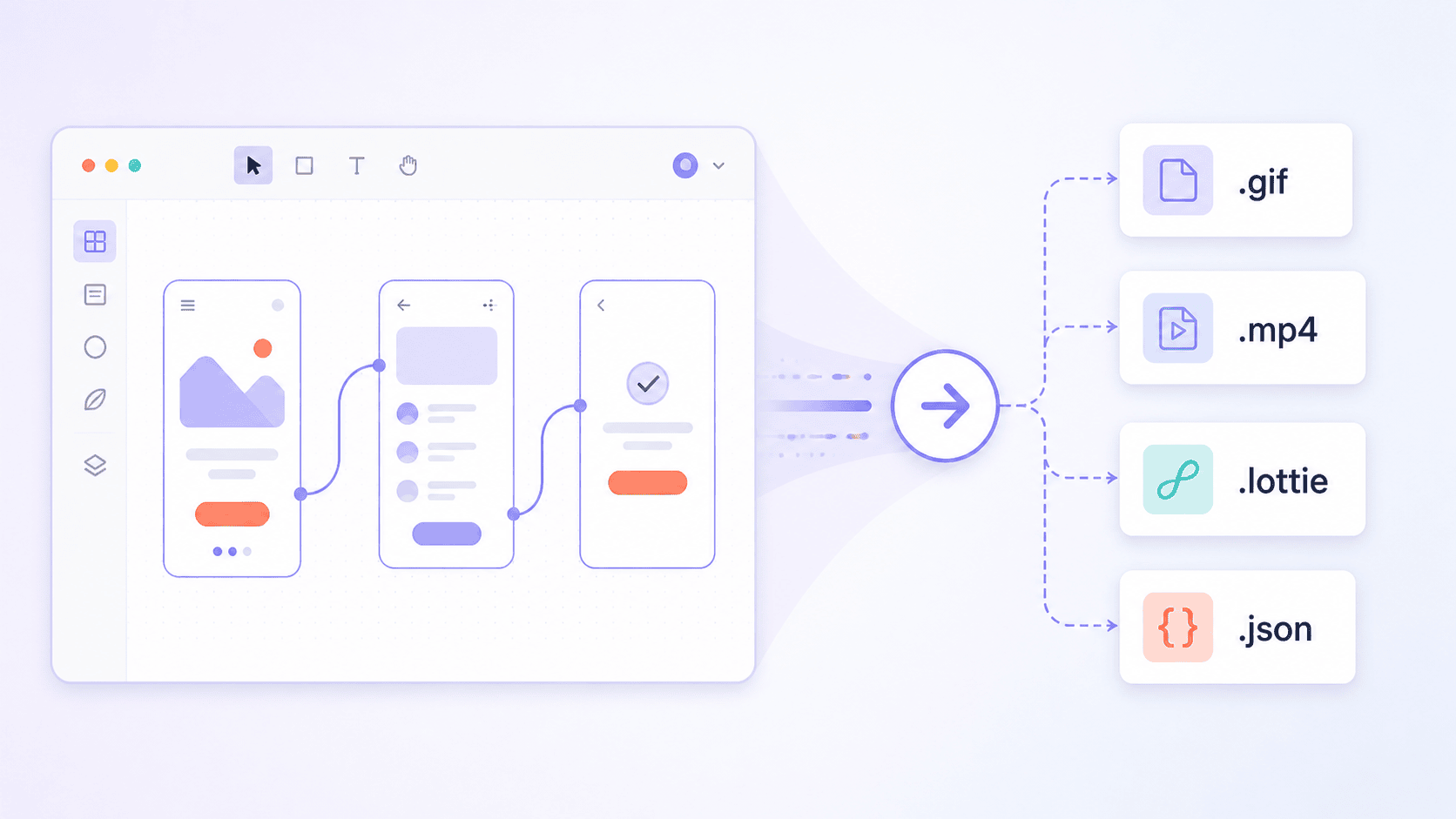
A practical guide to getting your Figma animation out of the file and into production, presentations, or wherever it needs to go.
You finish the animation. The transitions feel right, the easing reads as natural, the prototype clicks together cleanly. Then you open the export panel expecting a one-button finish, and you find nothing. PNG, JPG, SVG, PDF. No GIF. No MP4. No Lottie. The figma animation you spent two days perfecting cannot be exported the way you exported the design itself.
Figma animation lives in a different layer of the file than the assets the export panel knows about. The prototype engine animates beautifully, but rendering those animations to standalone files always runs through a third-party plugin, and which plugin you reach for depends entirely on where the animation is going next. This guide covers all of them: the formats, the plugins, the trade-offs, and the handoff details that decide whether what ships matches what you designed.
Why Figma Doesn't Have Native Animation Export
Figma's native export panel handles static assets only: PNG, JPG, SVG, and PDF. There's no built-in option for GIF, MP4, or Lottie, and the Figma community has been requesting native Lottie support for years without resolution. The reason is structural: animation in Figma lives inside the prototype interaction graph, not the design canvas. The export panel sees layers, not transitions, so it has nothing to render when you ask for an animated output.
This has one practical consequence that shapes everything else in this guide: you should pick your export tool before you start animating, not after. Different export plugins support different prototype features. Some handle Smart Animate beautifully but choke on overlays. Some preserve interactivity in the exported file; others flatten everything to a passive video. Designing the animation with the export target in mind saves you from rebuilding interactions when the plugin you chose doesn't support them.
If you're starting from scratch and want a primer on the animation system itself before getting into exports, the complete guide to Figma animation covers the foundation this guide builds on, and mastering animation in Figma for better prototypes goes deeper on the microinteraction patterns that produce export-friendly animation files.
Choosing the Right Export Format
The format you export to should be driven by where the animation will live, not by what's easiest to produce. Each format makes different trade-offs.
GIF: quick shares and inline documentation
GIF works for Slack messages, internal docs, GitHub READMEs, and anywhere you need a preview that plays automatically without a video player. The format is universally supported, but file sizes balloon quickly and color fidelity is limited to 256 colors per frame. For short UI demos, GIF is fine. For longer sequences or anything where color fidelity matters, the file size makes it impractical.
MP4 and WebM: presentations and marketing assets
MP4 is the right choice for stakeholder demos, client presentations, Behance and Dribbble posts, and any video context where playback quality matters. File sizes are dramatically smaller than GIF for equivalent quality, and most teams already have MP4 in their content workflows. WebM offers smaller files for web embedding when you control the playback environment.
Lottie JSON: production web and mobile, no interactivity
Lottie is the production standard for embedding animations in web and mobile apps. The JSON format renders as scalable vector animation through native libraries on every platform, which means a 30 KB Lottie file can replace a 2 MB GIF with no quality loss. The catch: standard Lottie JSON does not preserve interactivity. Triggers, hover states, and click responses are flattened into a passive timeline.
dotLottie: production with interactivity preserved
The dotLottie format (.lottie) is the modern container that solves the interactivity problem. It packages the Lottie animation along with state machine logic, so click, hover, and tap interactions survive the export. This is what you want for production work that includes anything beyond a passive loop. The trade-off is that dotLottie requires the dotLottie player on the receiving end, not the older lottie-web library.
Quick decision matrix
| Use case | Format |
|---|---|
| Slack share, internal doc | GIF |
| Stakeholder demo, client presentation | MP4 |
| Behance, Dribbble, portfolio | MP4 |
| Production web/mobile, passive loop | Lottie JSON |
| Production web/mobile, interactive | dotLottie |
| Marketing landing page hero | MP4 or dotLottie |
How to Export Figma Animations to GIF or MP4
Multiple plugins handle this and they don't all produce identical results. The right one depends on how your prototype is structured.
LottieFiles for Figma
The LottieFiles for Figma plugin is the most fully-featured option. It exports to dotLottie, Lottie JSON, GIF, MP4, WebM, and MOV from a single interface. Workflow is straightforward: build your prototype with Smart Animate or standard transitions, select the starting frame, click "Animate" in the plugin, then preview and export in your chosen format. It supports frame-to-frame flows, component variant interactions, and triggers including click, tap, hover, and after-delay.
FlowShot
FlowShot is a free, open-source alternative focused specifically on MP4 and GIF export. It records the prototype playback automatically rather than re-rendering from the layer data, which makes it more forgiving with edge cases that trip up rendering-based plugins. Useful when LottieFiles rejects something in your prototype and you just need a video out the door.
Protonix and Export to GIF/Video
Protonix exports prototypes directly to Lottie, Video, and GIF using the Aninix animation engine under the hood. It handles flow starting points cleanly and is particularly good at icon animations and onboarding sequences. The Export to GIF/Video plugin is another solid option for quick one-click export of marketing-style content.
The screen-record workaround
When plugin export fails on a complex prototype, the fallback is screen recording. QuickTime on macOS or Kap for Mac and Windows record a region of the screen, and you crop or convert from there. It's tedious and the output isn't pixel-perfect, but it's the only option that works regardless of which prototype features you used. Treat it as a last resort, not a default workflow.
File size and quality settings worth checking
For GIF, frame rate is the biggest lever on file size. Most UI animation looks fine at 24-30 fps; dropping from 60 fps to 30 fps roughly halves the file size with negligible perceived quality loss. For MP4, bitrate is the equivalent control. A 1080p UI animation usually looks clean at 4-6 Mbps; pushing higher just adds file size without visible improvement. The plugin defaults are a reasonable starting point, but for marketing assets going on a landing page, it's worth tuning these manually.
How to Export Figma Animations to Lottie and dotLottie
Lottie export is the production path, and the workflow is more involved than GIF or MP4 because the format itself does more.
The LottieFiles plugin: three export modes
The LottieFiles plugin supports three distinct export modes: preset, frames, and prototype. Preset mode applies a predefined animation to a single frame, useful for icons, logos, and simple micro-interactions. Frames mode exports a multi-frame sequence with the transitions you've defined between them, suitable for complex animations that don't need user interaction. Prototype mode exports the full interactive prototype as a dotLottie state machine, preserving click, hover, and tap behavior in the final file. Pick the mode that matches what you actually need; using prototype mode for a simple icon animation adds unnecessary complexity to the output.
Why dotLottie beats Lottie JSON for interactive work
The interactivity distinction matters more than it might seem. A standard Lottie JSON file is a timeline: it plays from start to finish and that's it. A dotLottie file with a state machine is a proper interactive component: you can click it, hover over it, and trigger different animation paths from those events. For a passive loading spinner, JSON is fine. For an interactive button or animated illustration that responds to user input, dotLottie is the only Lottie-family format that delivers what you designed. One important deployment note: dotLottie state machines require the modern @lottiefiles/dotlottie-web player, not the older lottie-web library. If your developer is using the old player, the file plays but the interactions don't fire.
Lottielab and Protonix as alternatives
Lottielab takes a different approach: import your Figma frames into Lottielab's editor, refine the animation there, then export to Lottie, GIF, MP4, or even Telegram sticker format. It's particularly strong for designers who want more control over the timeline after the initial import. Protonix is the option to know when you specifically need to export Smart Animate prototypes to Lottie; its Aninix engine handles Smart Animate translation more cleanly than some alternatives.
What Breaks During Export and How to Prevent It
Export plugins read your prototype, but they don't read it perfectly. Specific Figma features either translate badly or not at all, and the failures are predictable enough to design around.
Layer naming and structure mismatches
This is the biggest source of broken exports, and it's the same problem that breaks Smart Animate itself. If your layers don't have matching names and consistent hierarchy across frames, the export plugin can't track them through the animation, and you get visual jumps where you should see smooth transitions. The fix is the same one that makes Smart Animate work properly: name your layers descriptively, duplicate frames instead of rebuilding them, and audit names before you hit export.
Spring easings get approximated
Figma's spring easings (Gentle, Quick, Bouncy, Slow) don't translate one-to-one to Lottie. The export plugins approximate them with bezier curves, which means the motion will feel slightly different in the exported file than in the Figma prototype. For most cases the approximation is close enough that no one notices, but if a specific spring feel is critical to the design, test the export early and adjust the source easing if needed.
Unsupported interactions
The LottieFiles plugin specifically does not support several prototype actions: Back, Close overlay, Open overlay, Swap overlay, Scroll to, and URL actions. Replace these with Navigate To actions in the source prototype to enable interactive export. If your prototype leans heavily on overlays for modals or dropdowns, you'll need to restructure those flows as standard frame transitions before the export will work.
Background blur, gradients, and the long tail
Background blur transitions don't interpolate smoothly in Figma's prototype engine, and that limitation carries through to exports. Complex gradients beyond simple linear and radial often render with reduced fidelity. Effects like noise, inner shadows, and certain blend modes may render differently or not at all depending on the plugin and target format. The pattern is consistent: the more native rendering features you use, the more likely something breaks. Stick to position, size, opacity, and color animations for the most reliable export results.
Pre-export checklist
Before you click export, run through this:
- All animated layers have matching names and hierarchy across frames
- Overlays have been replaced with Navigate To transitions
- Spring easings have been tested in the export, not just in Figma
- Layer count is reasonable; deeply nested groups have been flattened where possible
- The first frame is set as the prototype flow starting point
Five minutes of checks here saves an hour of debugging exports that look wrong.
Handing Off Exported Animations to Developers
Exporting the file is half the handoff. The other half is making sure your developer can implement what you sent without guesswork.
What to send beyond the file
A .lottie file alone isn't a complete handoff. Include the trigger logic (when does this play, what fires it), the duration values, the easing types, and which properties are animating. For interactive dotLottie files, document which states exist and what user actions transition between them. Building this kind of motion documentation pairs naturally with the layer naming and easing discipline covered in the complete guide to Smart Animate. The principle is simple: a developer should be able to implement the animation without scheduling a clarification call.
dotLottie player vs lottie-web
This is the technical detail most designers don't realize matters. Standard lottie-web is the older library that plays Lottie JSON files; it doesn't support state machines. The newer @lottiefiles/dotlottie-web player handles dotLottie files with full interactivity. If you designed an interactive animation, exported it as dotLottie, and the developer drops it into a project using lottie-web, the file renders but none of the interactions fire. Flag this in the handoff so the right player gets installed from the start.
CDN and embed codes for faster handoff
LottieFiles offers CDN hosting and embed codes for exported animations, which short-circuits the typical "send a file, developer downloads it, developer adds it to the build" cycle. For prototypes that need rapid iteration, this is a significant time saver. The developer integrates the embed code once, and updates to the animation propagate without code changes.
Skip the Setup: Starting from Export-Ready Components
There's a hidden cost in the workflow most designers don't account for: every project starts with the same handful of common animations rebuilt from scratch. The button hover, the modal entrance, the loading spinner, the toast notification. Each one structured carefully with matching layer names so it'll export cleanly later. Across a year of projects, this is a substantial portion of the time budget spent on motion work, and most of it is repetition.
FigAnimations eliminates that rebuild loop. Every component in the library is built with consistent layer naming and clean prototype structure from the start, which means it exports cleanly through any of the plugins covered in this guide. Drop a hero animation into your file, run it through LottieFiles, and the dotLottie ships. Drop a sidebar animation into a prototype and it's already structured for clean Smart Animate transitions, which means clean exports. The library covers navigation, toasts, form elements, and tab bars, with the rest of the catalog built to the same standard. The setup is done. The export works. You spend your time on the decisions that actually need a designer's judgment.
Plan the Export Path Before You Animate
The single principle that pulls this whole guide together is the one stated at the top: pick your export target before you start building the animation, not after. The plugins each have constraints, the formats each have trade-offs, and trying to retrofit an export pipeline onto an animation that wasn't designed for it is how production timelines slip by half a day at a time.
Once you know whether you're shipping a GIF for a Slack share or a dotLottie for a production web component, the rest of the workflow falls into place. Layer naming gets done correctly the first time. Unsupported interactions get avoided rather than rebuilt. Spring easings get tested early instead of becoming a debugging session at handoff. The export becomes a checkbox at the end of the design phase rather than a separate project.
For designers who want to skip the setup tax entirely and start from components built specifically to export cleanly, FigAnimations is built for exactly that workflow. The library is ready, the layer structures are correct, and the export path is unblocked from the first frame of the project.